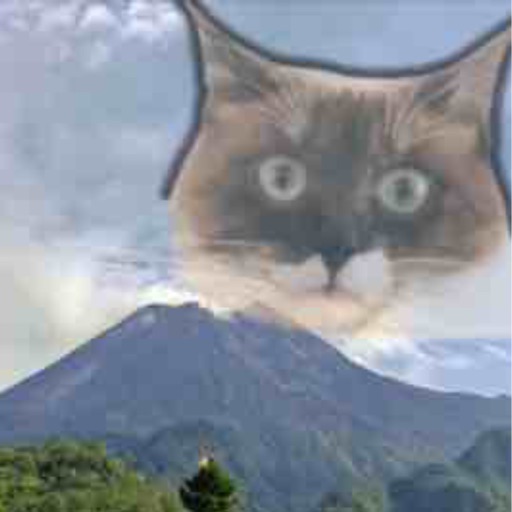
How to Use MemoryGhost | The Complete Guide to Layering Memory Photos

What you'll learn in this article:
- How to get started when you first open MemoryGhost
- The basic workflow for layering memory photos
- How to choose and order the photos you layer
- Tips for adjusting opacity to set the right mood
- How to save and share your finished photos
Here's the bottom line: MemoryGhost is an app that layers past and present photos into a single image. Start with just two photos, adjust the opacity of your base photo and overlay, and you can create a piece that brings memories to life. Don't aim for perfection — the most important thing is finishing your first image.
The Challenge of Organizing Memory Photos
Your phone's camera roll is full of photos, yet you rarely look back at them. Even when you create albums, you hardly ever open them, and memories stay buried as something you "used to have." Posting to social media doesn't help either — they just get swept away in the feed. When a family milestone comes around, or you want to honor someone who's passed, you think "I want to preserve this somehow" but don't know where to start.
MemoryGhost takes a different approach from traditional collages. While collages arrange photos side by side, MemoryGhost uses opacity to create "overlays." It's ideal for condensing family history into a single image or capturing the essence of memories with a pet.
Getting Started
- Launch the app and grant access to your photo library
- Select "Create New Piece"
- Choose one photo as your base
- Tap "+ Add Photo" to select a second photo
- Lower the second photo's opacity to around 50%
- Adjust position and size
- Add a third photo or more if needed (roughly 5 photos max is recommended)
- Zoom out to review the overall composition, then save
Photo Selection Basics
The photos you layer serve as either the "subject" or the "background."
- Subject: A photo with a clearly visible face, pet, or main focal point
- Background: Landscapes, skies, oceans, or meaningful places — anything without strong contrast
The most balanced composition is one subject photo with one or two background photos. Layering three subject photos will blend faces together until you can't tell who's who.
Tips for Adjusting Opacity
- Subject: Little to no opacity (0–20%)
- Background: 40–70% opacity
- Bottom-most background: 70–90% is fine
- If the overall image looks too washed out, lower the subject's opacity
You can fine-tune opacity with the slider. Start at 50% and adjust based on whether the image looks too bright or too dark — that's the fastest approach.
What the App Can Do
- Layer 2–5 photos together
- Individually adjust opacity, position, and size
- Fine-tune brightness and contrast
- Save history in the in-app library
- Export to your camera roll
Three Examples
1. Family Photos Across Generations Layer a photo of your grandparents from their younger days with a current family photo. The connection spanning generations becomes visible.
2. Travel Memento Layer a landscape photo from your trip with a portrait taken at the same spot. A single image conveys the when, where, and who.
3. Pet Record Layer a photo from the day you welcomed your pet with a recent photo. Their growth is condensed into one image.
Common Mistakes and How to Fix Them
Mistake 1: The layered image turned out too dark The subject's opacity is probably too high. Lower it to 20% or below.
Mistake 2: Multiple faces are blending together and it's hard to tell them apart Limit face-containing photos to just one. Use landscapes or object shots without people for the rest.
Mistake 3: Part of the image looks grainy due to different resolutions Place lower-resolution photos in the foreground at a smaller size to minimize the mismatch.
Mistake 4: Can't save Write access to the photo library may be disabled. Go to Settings and change it to "All Photos."
Mistake 5: The result doesn't look polished enough to share Your first few images are practice runs. By the time you've made ten, you'll have developed your own technique.
FAQ
Q. How many photos do I need? A. You can create an image with as few as two. Three to five photos tend to look best and are easiest to layer. Too many elements make things cluttered, so keeping it focused produces a cleaner result.
Q. Can I edit photos within the app? A. You can adjust brightness and opacity. For more detailed color adjustments, edit your photos in a separate photo editing app before importing them — this produces cleaner layers.
Q. I feel hesitant about using photos of someone who has passed away. A. If it's purely for personal enjoyment, there's no issue. If you plan to post on social media, it's best to get consent from family members or those involved first to avoid any disputes later.
Q. Where are finished photos saved? A. They're saved to your device's camera roll. They're also kept in the app's internal library, so you can remix the same source photos into different compositions.
Q. Will layering photos with different resolutions still look good? A. Enlarging a smaller photo to match a larger one can cause graininess. Either match the resolution of your source photos, or place lower-resolution photos in the foreground rather than the background for the safest results.
Summary
MemoryGhost is an app that layers two or more photos to visualize your memories. Start with just two photos, keep the subject's opacity low and the background's high — stick to that basic rule and you'll be set.
If you're using it to memorialize a pet, check out "How to Create a Pet Memorial Photo." For tips on choosing the right photos, see "How to Choose Photos That Work | Before/After Examples."
Related articles
Memory Ghost
A horror-style photo editing app that turns ordinary pictures into strange and funny images.