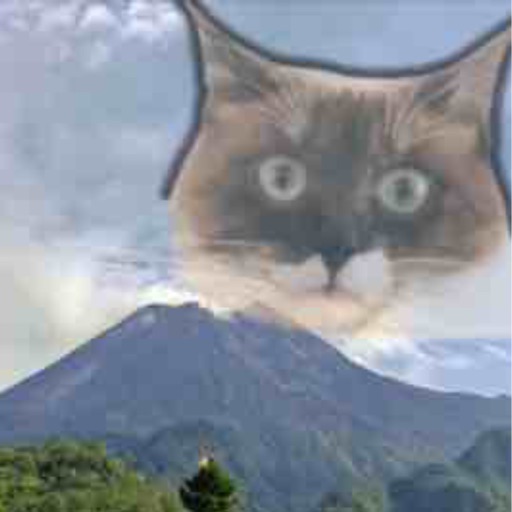
How to Choose Photos That Work in MemoryGhost | Before/After Examples

What you'll learn in this article:
- The three factors that make or break your results (resolution, composition, color tone)
- How to choose subject photos vs. background photos
- Before/After comparisons that show the difference good selection makes
- Tips for re-capturing old physical photos
- How to check framing to improve your final result
Bottom line up front: 70% of your MemoryGhost result is determined by photo selection. Rather than struggling with opacity and placement inside the app, spending time on careful photo selection upfront gives you dramatically easier and better-looking results.
Common Overlay Blending Failures
You thought you picked good photos, but the composite turns out with overlapping faces, mismatched brightness, or one layer looking grainy because the resolutions don't match. This isn't a skill problem—it's a selection problem.
This page covers three criteria for avoiding failures, along with concrete Before/After examples.
Three Criteria for Success
1. Match the resolution Gather photos with similar resolutions for layering. If you mix a freshly taken smartphone photo with a 10-year-old flip phone photo, the older one will look noticeably rough. Either place old photos small in the foreground, or re-capture them before using.
2. Be intentional about composition Keep the subject to one photo only. If multiple faces compete for attention, the viewer's eye wanders. Choose backgrounds that are empty or simple.
3. Match the color tone Pairing warm-toned photos together or cool-toned photos together creates visual harmony. If the tones are drastically different, adjust them in another app first before importing.
Before/After Examples
Example 1: Family photo composite (two generations)
Before:
- Childhood photo of yourself (old, low resolution, sepia)
- Current photo of your child (high resolution, full color)
- Overlaid as-is → The old photo is too grainy, throwing off the balance
After:
- Re-captured the childhood photo using a scanning app
- Re-shot with a smartphone in natural light
- Resolutions now match, so the layered result looks seamless
Example 2: Travel memento
Before:
- Scenic landscape (portrait orientation)
- Photo of yourself (landscape orientation)
- Overlaid as-is → Cropping cut off half the scenery
After:
- Used the landscape photo in portrait orientation as the background
- Cropped the selfie to portrait orientation before placing it in the foreground
- Matching orientations created a balanced composition
Example 3: Pet growth record
Before:
- Puppy photo (indoors, dark)
- Current photo (outdoors, bright)
- Overlaid as-is → The puppy is too dark to see
After:
- Increased the puppy photo's brightness by +30 in another app
- Decreased the current photo's brightness by -10
- Overall tone is now consistent, and both subjects are visible in one image
What the App Can Do
- Overlay blending of 2–5 photos
- Individual adjustment of opacity, position, and size
- Fine-tuning of brightness and contrast
- History saved in the in-app library
- Export to your camera roll
Tips for Re-Capturing Old Photos
Key points when photographing physical prints with your smartphone:
- Place the photo flat on a table (any curve will cause distortion)
- Use natural window light, but avoid direct sunlight
- Watch for shadows (angle yourself so your shadow doesn't fall on the photo)
- Shoot from directly above
- Using a scanning app (Genius Scan, Adobe Scan) adds automatic distortion correction
Common Mistakes and Fixes
Mistake 1: Subjects' faces overlap and become hard to distinguish Limit face-containing photos to just one. Use empty landscapes or close-up detail shots for the remaining layers.
Mistake 2: Old photo is too grainy Either re-capture it, or place it small in the foreground so the roughness is less noticeable.
Mistake 3: Dark photo as the base makes everything look muddy Use a bright photo as the base and layer the dark photo on top with higher opacity.
Mistake 4: Aspect ratio mismatch causes edges to get cut off Pre-crop the overlay photo to match the base photo's aspect ratio.
Mistake 5: Clashing color tones create an unnatural look Use another app (Snapseed, Lightroom, etc.) to unify the tones before importing.
FAQ
Q. Is it okay to mix photos with different resolutions? A. It works, but placing the lower-resolution photo small in the foreground minimizes the mismatch. Using a low-resolution photo as the background requires enlarging it, which makes the graininess obvious.
Q. Can I layer a dark photo with a bright one? A. You can, but using the dark photo as the base will make everything look muddy. It's better to use the bright photo as the base and blend the dark one in with higher transparency.
Q. What should I do when the aspect ratios don't match? A. Match to the base photo's aspect ratio. For the overlay photo, either crop the parts that extend beyond the frame, or increase the transparency so it's less noticeable.
Q. Can I use an old photo that I re-captured with my smartphone? A. Absolutely. When re-capturing, lay the photo flat and shoot from directly above in natural light to minimize distortion. Using a scanning app alongside gives even better results.
Q. I want to layer photos of the same place from different time periods. A. It looks best when the composition of the scenery is similar. Shooting from the same angle lets past and present overlap naturally.
Summary
Your final result comes down to photo selection. Match resolution, composition, and color tone before importing, and the in-app adjustments become much easier. Re-capturing old photos carefully is well worth the effort.
For your first steps, read "How to Use MemoryGhost | Layering Memory Photos", and for pet memorial use, see "How to Create a Pet Memorial Photo".
Related articles
Memory Ghost
A horror-style photo editing app that turns ordinary pictures into strange and funny images.