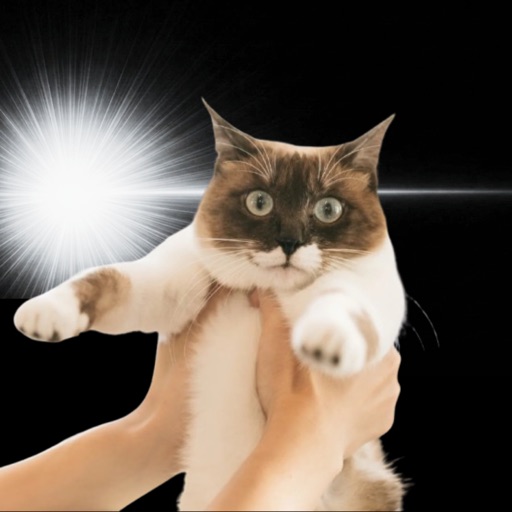
How to Use Kyupeen | The Complete Guide to Turning Pet Photos into Manga-Style Art


What you'll learn in this article:
- Basic controls when you first open Kyupeen
- How to pick the best source photo for dogs and cats
- A step-by-step workflow for trying effects one at a time
- What to do when the result doesn't look right
- The fastest path from finished image to saving and sharing on social media
Here's the bottom line up front: getting great results with Kyupeen comes down to three things — "choose a bright, front-facing photo," "try one effect per photo at a time," and "save your favorite combinations to the library." Don't expect perfection on the first try; run through five or six photos to get a feel for it.
Common Frustrations with Pet Photo Editing
You snap an adorable photo of your pet, but it gets lost in the crowd when you post it on social media. You try a filter app, but the filters are designed for people so they can't capture your pet's features properly. There are plenty of manga-style photo apps out there, but none of them are built for anything other than humans.
Kyupeen is designed specifically to turn pets and animals into manga-style art, so it brings out the features that matter — a dog's fur texture, a cat's big eyes, or the silhouette of a rabbit's ears.
Getting Started
Here's how to get comfortable with the app in about three minutes.
- Open Kyupeen and grant access to your photo library
- Tap "Choose Photo" and select one pet photo
- Try just the first effect in the list
- Check the preview to make sure your pet's face position and outline look correct
- If you like it, tap "Save" — if you want a different vibe, go back
- Try two or three different effects on the same photo
- Save your favorites to your camera roll, then share to social media
- Confirm that the default save location is set to your camera roll
Choosing the Right Source Photo
The source photo is the biggest factor in how the final image turns out. Here's what to look for:
- A front-facing shot or up to a 45-degree angle works best
- Eyes should be clearly visible (sleeping faces tend to throw off the outline detection)
- A clean, uncluttered background produces cleaner results
- Natural light works best — especially soft morning light
- Make sure the face is in focus (if the background is in focus instead, the face will look blurry)
Effect Pairing Examples
Here are some tendencies we've noticed through testing:
- Black cats → Effects with bold lines work well and really make the eyes pop
- Shiba Inus → Warm-toned effects bring out the fur's natural color
- Rabbits → Effects with fine lines keep the ear silhouette clean
- Hamsters → Round-face-enhancing effects play up their natural cuteness
- Large dogs → For full-body shots, effects with thicker outlines tend to look best
What the App Can Do
- Library feature that lets you try multiple effects on a single photo
- Automatic face detection with manual fine-tuning
- Auto-export in social-media-ready aspect ratios
- Edit history with the ability to re-edit past photos
- Works on stuffed animals and figurines too (see separate article)
Common Mistakes and How to Fix Them
Mistake 1: The face position is off in the processed image This usually happens when the source photo is low-resolution or the face is too close to the edge of the frame. Crop the photo so the face is centered before importing it.
Mistake 2: The fur looks flat and muddy When both the background and the pet are dark, the app has trouble separating the outline. Switching to a photo with a brighter background usually fixes this.
Mistake 3: The eyes turned completely black This tends to happen with backlit photos. Choose a different photo of the same pet taken with front lighting instead.
Mistake 4: Can't save the image Photo library write permission may be disabled. Go to Settings → Kyupeen → Photos and change it to "All Photos."
Mistake 5: The processed image looks grainy The default output is compressed for social media. If you want to print the image, use the high-resolution export mode.
FAQ
Q. Can I only process one photo at a time? A. Yes, Kyupeen is designed to process one photo at a time. Batch processing tends to produce inconsistent results, so you'll get better output by selecting your favorite photo first and then applying effects to it.
Q. How long does processing take? A. Usually 10–30 seconds. Larger source images may take longer. If you close the app mid-process, you can retry by relaunching it.
Q. What size is the finished image? A. Images are exported at a resolution ready for social media posting. It automatically adapts to Instagram's square format and Stories' vertical format, so you can post without any additional cropping.
Q. Will the image quality be worse than the original photo? A. The manga-style outline enhancement changes the look compared to the original photo, so the "photographic sharpness" will be different. Since the app is designed to create an AI-art-style look, a different app would be better suited for faithful archival copies.
Q. Where are processed images saved? A. By default, they're saved to your device's camera roll. They also remain in the app's internal library as history, making it easy to re-edit the same photo with a different effect.
Wrap-Up
Kyupeen is an app optimized specifically for turning pet photos into manga-style art. Try five or six photos with different effect combinations, and you'll quickly find the patterns that work best for your pet.
There are also separate articles on editing stuffed animals, figurines, and people. Check out "How to Edit Stuffed Animal Photos" and "How to Edit Figurines & People" as well.
Related articles
Kyupeen
A photo editing app that adds light effects to make cute and funny images.