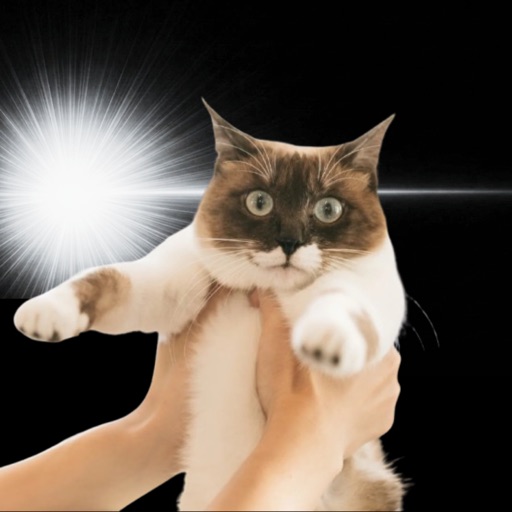
How to Edit Plushie Photos with Kyupeen | Best Effects and Photography Tips


What you'll learn in this article:
- The basic workflow for editing plushie photos with Kyupeen
- Photography tips to improve recognition accuracy
- Recommended effects for plushie photoshoots, travel plushie shots, and collection photos
- How to fix lackluster results
- Adjusting your output for social media-friendly dimensions
Bottom line up front: when editing plushie photos, as long as you follow three rules—natural light, plain background, and front-facing angle—you can create tons of variations just by switching effects. Most failed photos come down to bad lighting, so keeping "reshoot" in mind as an option saves a lot of wasted effort.
Common Challenges with Plushie Photography
If you're into plushie photography, you've probably run into these issues: your posts look the same as everyone else's on social media. You want to enhance them with an app, but portrait filters use face detection that ignores plushies. There are plenty of manga-style editing apps, but they wipe out the soft texture that makes plushies special. Travel photos with scenic backgrounds end up with only the background turning into an illustration, creating an awkward mismatch.
Kyupeen excels at converting subjects with clear facial features into manga style, and plushies with well-defined faces convert beautifully.
Photography Tips for Plushies
Here's how to shoot for better editing results.
- Window-side natural light works best—soft morning to midday light is ideal
- Use a plain background like a solid wall, bedsheet, or white desk
- Position the plushie facing forward or at roughly a 30-degree angle for the most consistent effects
- Shoot close enough that facial details (eyes, mouth) are clearly visible
- Frame from the chest up rather than full body so the face fills more of the frame
For travel shots, keep the landmark slightly blurred while focusing on the plushie—this prevents the background from competing with the subject after editing.
Editing Steps
- Open Kyupeen and select your plushie photo
- Start by trying mid-tone effects from the effect gallery
- Check the preview to make sure facial features haven't shifted
- If face recognition is accurate, save as-is; if not, try a different effect
- Test 2–3 effects on the same photo and post the best one to social media
Three Real Examples
1. Character plushie (from an anime/game franchise) Applying a thick-lined effect similar to the original art style gives it a fan art feel. Characters with bold, distinctive colors tend to work especially well.
2. Travel plushie (at a traditional Japanese inn) The tatami and sliding door background transforms into a soft illustrated backdrop through manga-style conversion, letting the plushie blend in naturally without looking out of place.
3. Group shot of a collection Editing the whole group at once tends to weaken individual details, so it's better to edit each plushie separately and then arrange them using a collage app.
What the App Can Do
- Recognize plushie faces and convert them to manga style
- Transform travel photo backgrounds into illustration style along with the subject
- Preview multiple effects side by side
- Export in portrait or square formats for social media
- Re-edit from your processing history
Common Mistakes and Fixes
Mistake 1: Face isn't detected, so the effect is weak This happens often with plushies that have faint embroidered features or fur covering the face. Changing the light angle to create shadows that emphasize the eyes and nose usually helps.
Mistake 2: The whole image turns dark Backlit photos tend to have their darkness amplified during editing. Reshoot with front lighting, or increase exposure by +0.5 before saving.
Mistake 3: The background looks rough Busy backgrounds produce noise-like artifacts after editing. Reshooting against a plain background is the quickest fix.
Mistake 4: Image looks grainy after uploading to social media To account for social media compression, export at a higher resolution. Use the highest quality setting available in the app before posting.
Mistake 5: The plushie is too small in the frame When the subject takes up less than 30% of the frame, face detection becomes unreliable. Reshoot with a chest-up composition.
FAQ
Q. Can Kyupeen actually recognize plushies? A. Plushies with clearly defined facial features are recognized well. However, characters that are mostly fur or have only embroidered faces may not be detected reliably, resulting in weaker effects.
Q. Does it work with travel photos featuring plushies? A. Yes. When you have a plushie photographed with a tourist spot in the background, the manga-style conversion turns the background into an illustrated look that creates visual harmony. It's a great way to document travel memories.
Q. Can I create "plushie photoshoot" style images with my favorite character's plushie? A. Absolutely. Focus on three things: center your subject in the frame, shoot in natural light, and use a plain background. This ensures the character's personality comes through clearly even after editing.
Q. The result looks flat and lifeless. A. This usually happens when there's low contrast between the face and background. Either use a brighter plain background, or position the plushie slightly forward to create more depth in the composition.
Q. Can I edit multiple plushies together in one photo? A. You can, but recognition accuracy varies. Editing each one individually and arranging them afterward tends to better preserve each plushie's unique character.
Summary
Plushie editing works great with Kyupeen—once you make the shooting and editing steps part of your routine, you'll get consistent results every time. Nailing the photography is the single biggest shortcut to great output.
For the basic pet photo workflow, see "How to Use Kyupeen | Complete Guide to Manga-Style Pet Photo Editing". For figures or people, check out "How to Edit Figures and Portraits".
Related articles
Kyupeen
A photo editing app that adds light effects to make cute and funny images.